> For the complete documentation index, see [llms.txt](https://docs.slatecx.com/llms.txt). Markdown versions of documentation pages are available by appending `.md` to page URLs; this page is available as [Markdown](https://docs.slatecx.com/guides/slatecx-mcp-server.md).
# SlateCX MCP Server
SlateCX exposes a tenant-bound MCP (Model Context Protocol) server, so an external AI assistant like Claude can work with your SlateCX account directly. Reading is the foundation: ask “which campaigns use the pricing source?” or “summarize this week’s conversations” and the assistant answers from live data. And with explicit, admin-approved write permission, the assistant can also make configuration changes for you: “tighten the wave question on the pricing campaign,” “add this markdown as a source and select it for the launch campaign,” “create a card from the ROI one-pager.”
It is worth being clear about who this is for. This is a **marketer’s tool**, not a developer integration. No API key, no code, and nothing to deploy: you connect Claude once and then work in plain language against your own SlateCX account.
### Connecting from Claude
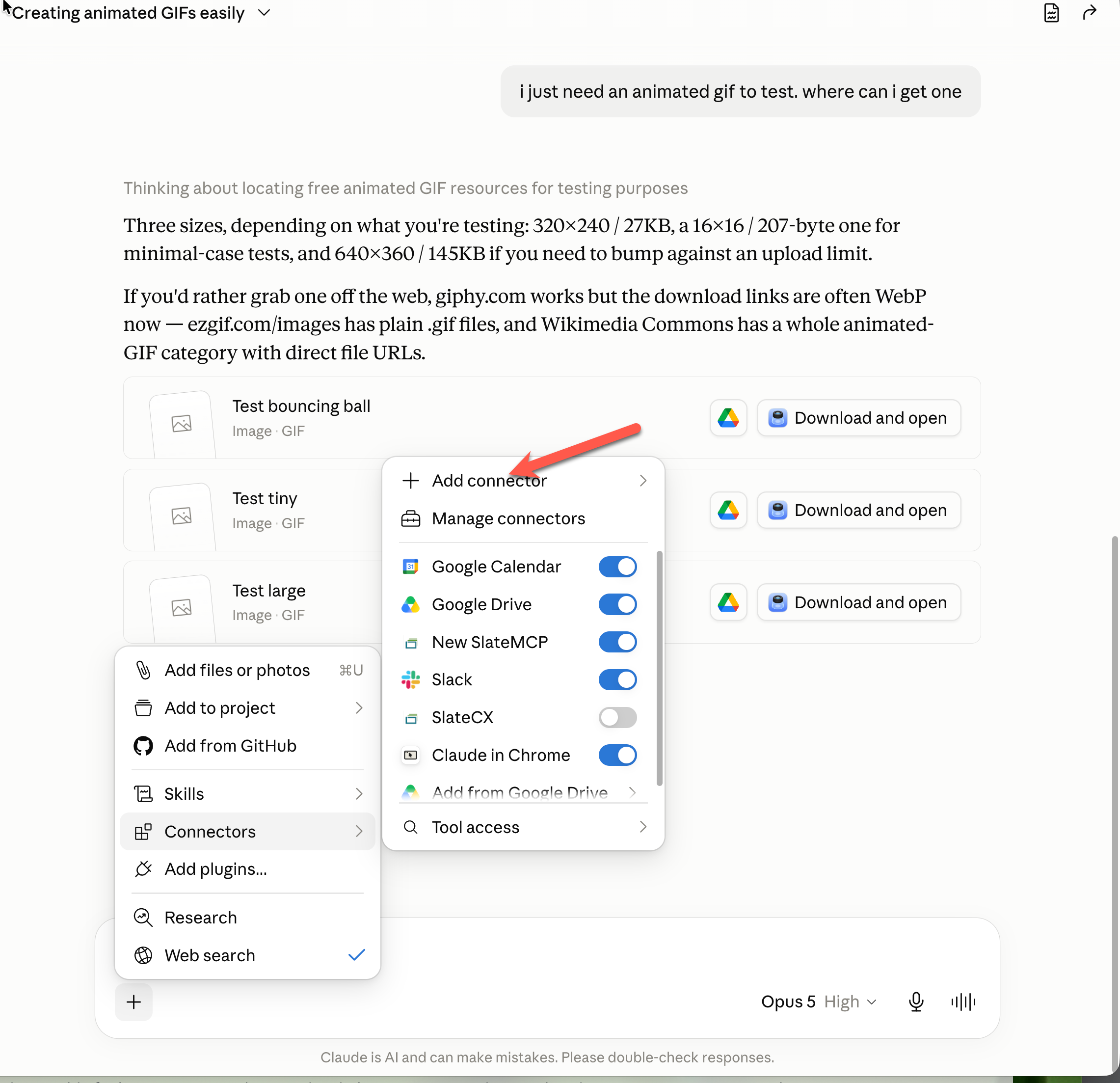
1. In any Claude chat, click the **+** button in the message box, open **Connectors**, and choose **Add connector**.
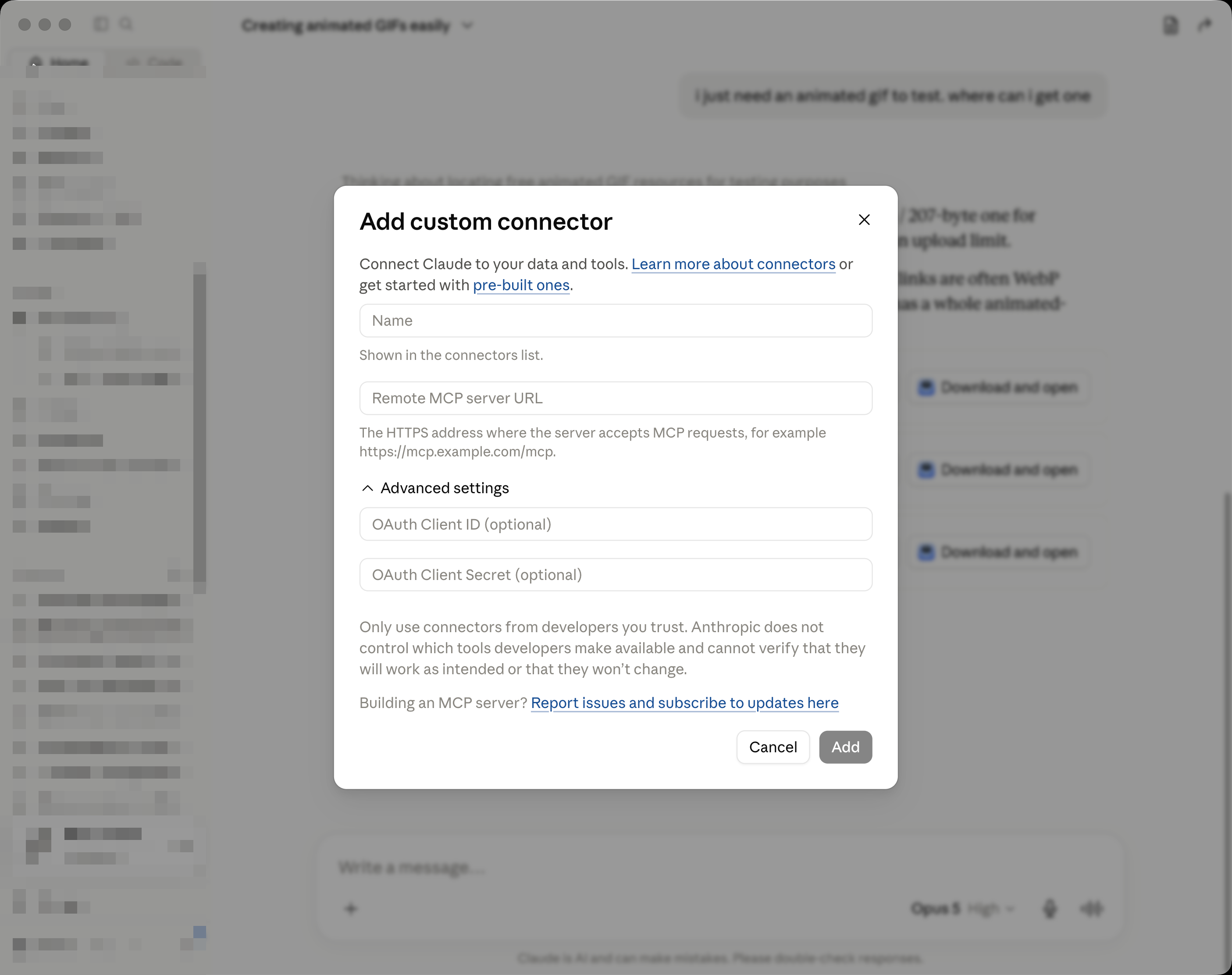
1. In the **Add custom connector** dialog, give it a name (like “SlateCX”) and enter the server URL: `https://app.slatecx.com/mcp/tenant`. Leave the Advanced settings empty, and click **Add**.
2. Start the connection. You’ll be sent to a SlateCX **consent screen**: sign in with your SlateCX user if asked.
3. If your user belongs to more than one SlateCX account, pick the tenant this connection is for; a connection is always bound to exactly one tenant.
4. Choose the permissions to grant (next section), then approve. Back in Claude, the connector appears in the **Connectors** list with a toggle to enable it per chat.
**Verify:** ask the assistant to list your campaigns; the answer should match Admin exactly.
### Choose what to grant
The consent screen groups permissions into **Core** (always on, just the connection context), **Configuration**, **Contact operations** and **Slate reporting**. Only the groups your assistant actually asked for are shown. Inside them there are six permissions:
* **Read configuration**: campaigns, sources, current knowledge matches, cards, branding, and background-job status. Required while authoring access is selected, which is why it ticks itself and greys out once you choose to author.
* **Read Slates and conversations**: slates, stored conversations and their knowledge source references, card performance, funnel activity, and wave performance.
* **Author and refine configuration**: the authoring tools. It can only be granted, and used, by an active tenant **administrator**. Regular members never see write tools, regardless of what was requested.
* **Allow destructive actions**: a separate, second approval covering the operations that can undo work rather than add to it. It is never pre-selected. See the next section.
* **Read contact state by email**: look up one contact’s current Slate, conversation, answers, goals and cards. Exact email only, one contact per call, and there is no way to list or browse your contacts.
* **Create Slates and add Cards**: create a Slate for a contact and push a campaign card onto their current one. This is marked **prospect-visible changes** on the consent screen, because it is the one group that alters what a buyer sees. It does not send email.
Reads start ticked and every write starts off. Ticking a write adds the read it depends on automatically, and unticking a read removes the writes that needed it, with a line explaining why. The screen also names which assistant is connecting: ChatGPT, Claude, or HubSpot.
The screen is explicit about what it cannot do, and those guarantees are worth reading rather than skipping. **SlateCX does not run an LLM for any of these tools**, so nothing here consumes your agent capacity or puts a model between the assistant and your data. Without destructive access, authoring never permits a delete. And no permission, in any combination, allows prospect messaging, billing changes, team member changes, integration changes, or LLM provider changes.
Contact operations carry their own boundary line on the screen: exact email required, one contact per call, no contact directory. It also tells you plainly whether you are approving read-only or read-and-write access, and the approve button changes to match (**Connect with read & write**). An existing connection keeps exactly the permissions it was given: to add one, you reconnect and approve again. Nothing escalates silently, and an assistant cannot request its way into a permission you did not tick.
A sensible default for most people: grant both reads and stop there. Add authoring when you actually want the assistant building for you, and leave destructive actions off until you hit a task that needs it.
**One thing the consent screen warns about that is easy to miss:** some relationship replacements under plain authoring can disable campaign cards or clear dependent links. Authoring is not purely additive, which is another reason to work in small steps with a preview check, as described at the end of this page.
### The second approval, and why it exists
Most write operations add something or edit a self-contained field, and a mistake is easy to see and easy to undo. Two are different, because they remove rather than add, and can quietly change what a live campaign does:
* **Replace a campaign’s source selections.** This is the whole selection, so anything left out is removed, taking its cards out of the campaign and narrowing what the agent knows. Adding sources is an ordinary authoring action and does not need this permission.
* **Delete a prompt pill.** The only true delete in the catalog, and, as the consent screen says, a deleted pill has no restore action on your side.
Splitting these out means you can hand an assistant real authoring ability while keeping the operations that take things away behind a deliberate second decision. Until you grant it, those two tools are not merely blocked, they are **not listed to the assistant at all**, so it will neither attempt them nor suggest them.
**Tip:** permissions are a per-connection choice, not a per-request one, so once you grant destructive actions they stay granted. Claude gives you a second, finer control on top: open **Settings → Connectors → SlateCX** and set individual tools to **Always allow**, ask each time, or never. Granting the permission at consent and then leaving the destructive tools on ask-each-time gives you the capability without the surprises.
## What it can read
**Thirty-two read tools.** With **Read configuration**:
* **Campaigns**: list them, read one campaign’s full configuration or a single section (goals, questions, prompt pills, entry points), and run a readiness check that reports whether a campaign is ready, blocked or incomplete and why.
* **Library**: list and read sources and cards, including which campaigns use them.
* **Knowledge testing**: ask what the agent’s retrieval currently finds for a given question, which is the fastest way to prove a source is actually working.
* **Skills**: list them and read one in full, so you can audit what your agents have been taught without opening the editor.
* **Brand and presentation**: branding settings, your whole collection of Embed styles, a report of everywhere a given style is used, and an entry point’s presentation with a desktop, mobile and embedded preview.
* **Jobs**: recent website imports, HubSpot imports, recrawls and card generation, and the detail of any one of them. The assistant can read a job’s progress; it cannot start, stop or retry one.
* **Screenshot card candidates**: every distinct region of a crawled page that could become a card, which pairs with card creation below.
* **Preview sessions and Markdown bodies**: poll a preview session until the slate is ready and get its ID, and read the exact current text of a Markdown source so an edit replaces it faithfully rather than from memory.
With **Read Slates and conversations**:
* **Slates**: an activity summary for a period, the slate list, and one slate’s detail broken out by participants, information gathered, goals, activity or cards.
* **Conversations**: list them for a campaign or slate, and read a full chronological timeline.
* **The official Insights reports**: Card Performance, Slate Funnel and Wave Prompts. These return the same numbers Admin shows rather than a recalculation, so an answer from Claude and an answer from the dashboard will agree. Preview slates are excluded by default and every result states the scope it used, so ask for them explicitly if you are evaluating a campaign before launch.
This access can include stored participant names and email addresses along with conversation messages, answers, goals and activity, which the consent screen states plainly. Treat a connection with Slate read the way you would treat dashboard access.
**If the numbers look off:** Claude’s own connector settings split these thirty-two into **2 interactive tools** and **30 read-only tools**. The two interactive ones are entry-point presentation review and screenshot card candidates, which render a visual preview in the chat rather than returning text. Nothing is missing; they are just grouped separately because they draw something.
## What it can write
**Thirty-two write tools**, deliberately focused. With **Author and refine configuration**, twenty-eight of them:
* **Campaign and agent**: create and update a campaign, its goals, and its information-gathering questions.
* **Prompt pills**: create, update and reorder the Prompt Pill Library, up to the usual ten active pills per campaign.
* **Sources**: add a markdown source written on the spot, import one public web page you have chosen, link a live external source (live web page, YouTube, Walnut or Storylane), and update a source’s settings.
* **Cards**: create a card from a source, including cropping one of the screenshot regions listed above, and rebuild a card from a newer version of its source (or record that you have reviewed it and want to keep the current one).
* **Campaign sources**: add sources to a campaign. Removing them is a destructive action, below.
* **Skills**: create and update a Skill, and set which Skills a campaign uses and in what order. Archiving and restoring stay in Admin.
* **Tenant experience**: update branding, save the whole Embed style collection at once, set the brand icon from a public image URL, create entry points, adjust an entry point’s presentation, and mint short-lived preview sessions.
With **Allow destructive actions** as well, two more: replace a campaign’s source selections (which can remove sources and their cards), and delete a prompt pill.
With **Create Slates and add Cards**, the two contact actions: create a new Slate for a contact, and push a campaign card onto a contact’s current Slate.
A connection granting everything sees 64 tools. Most people need far fewer.
### Recent additions to the catalog
The tool names have not changed, but three things they accept have:
* **Campaign voice.** Creating or updating a campaign accepts a speech voice from the supported list. Leave it out and the saved voice is kept; clear it and the campaign goes back to Marin (see [Voice conversations](https://slatecx.com/documentation#28-voice)).
* **Wave elevation.** Each Embed style palette accepts an optional Wave elevation from 0 (off) through 3 (high), independent of the Wave border. A style that never set one keeps rendering exactly as it did.
* **Color sources.** Embed styles now report where each color comes from: default, custom, or automatic. Reads always include this. On a save, leaving it out is fine: colors you did not touch keep their source, and colors you changed become custom. Updating branding re-derives only the Wallet colors still on default, the same way Admin does.
There is deliberately **no message-send tool**: an assistant can never chat as your agent or inject content into a prospect conversation. To see how a change behaves, it mints a preview session and you open that preview in your own browser.
Also outside the catalog, on purpose: HubSpot and Slack connections, team members, billing, API keys, and starting or cancelling jobs. Those stay in Admin.
### Use it from HubSpot’s AI
The same server is registered inside the SlateCX HubSpot app, so HubSpot’s AI can use these tools directly. Nothing to paste and no URL to find: connect SlateCX to HubSpot as normal, and the tools become available there under the permissions you approve on the same consent screen.
This is where the contact permissions earn their place. Working inside your CRM, the useful question is about the person you are already looking at: what have they asked about, what have they been shown, which goals have they hit, and can you put the ROI one-pager on their Slate. All of that works from an exact email address, which is what HubSpot has, and none of it needs a way to browse your contacts.
**This is a different thing from Workflow Actions.** Workflow Actions are deterministic steps in an automation you built (see [Drive Slates from HubSpot workflows](https://slatecx.com/documentation#30-hubspot-workflow-actions)). This is an assistant reasoning over your SlateCX account while you work. Use the first for anything that must happen the same way every time, and the second for asking questions and making one-off changes.
### Importing pages from your website
Worth calling out because it works differently from what people expect. SlateCX does **no page discovery** through the connector. It will not crawl your site, suggest pages, or decide what is worth importing. The assistant browses or scans your website itself, picks the exact pages, and then calls the importer once per URL.
The practical version of that: “look at our solutions section and import the four pages a mid-market buyer would care about” works well, because the judgment is the assistant’s and the import is yours. And because each page is a separate call, a partial result is normal and safe to inspect rather than something to retry blindly.
### The guardrails
* **Stale-edit protection.** Every update must be based on the current version of the object, read through MCP first. An edit built on outdated data is rejected instead of silently overwriting newer work, which makes “assistant edits my campaign” safe even while teammates are working in Admin.
* **Tenant-bound.** The OAuth grant is bound to one tenant, and every object access is enforced at the tenant level; a valid connection can never touch another tenant’s data.
* **Write revalidates everything.** Each write call re-checks that the user is still an active administrator with the right permissions, so a revoked admin’s connection loses write ability immediately. A member never sees write tools even if something claims otherwise.
* **Bounded projections.** Responses expose tenant-safe fields, never credentials, private keys, hidden prompts, or internal records.
* **No blind retries.** If a create or import ends ambiguously, the assistant is instructed to look before acting again rather than repeating the call, so you don’t end up with duplicates.
### A working rhythm
The intended loop for assistant-driven changes: read the current configuration, make one focused change, ask the assistant to test knowledge retrieval for the campaign, then open a preview slate in your browser and try the conversation yourself. Small steps with a preview check after each beats a batch of blind edits, and the stale-edit protection is built around exactly this rhythm.
**Verify:** ask the assistant to add a short markdown source, select it for a test campaign, and test retrieval against a question only that source can answer. Then have it mint a preview session, open the link yourself, and ask the same question in the slate.
One scoping note: this server is for your team’s assistants working with your admin-side data. It has nothing to do with prospect experiences; prospects never interact with MCP, and connecting it changes nothing about what they see.